VikingVision
VikingVision is a high-performance vision processing library for FRC teams, built in Rust for speed and reliability.
Why VikingVision?
FRC vision processing needs to be fast, reliable, and run on resource-constrained hardware. VikingVision provides:
- Performance: Parallel pipeline processing with minimal overhead
- Ease of use: Configure pipelines in TOML (and soon a GUI!) without writing code
- AprilTag support: Built-in detection for FRC game pieces
- NetworkTables integration: Easy communication with robot code
Also, this is done in Rust, so it’s 🔥blazingly fast🔥 or whatever.
Why not OpenCV?
Using it from Python leads to performance bottlenecks, and unless you’re working with the latest Python version, has almost no capability for parallel processing. In any language, writing and maintaining complex programs for requirements that change every year is also a significant overhead, especially for teams without many programmers. By using VikingVision, that work is gone, and only a small configuration file needs to be maintained.
OpenCV’s spotty documentation and lack of safety (it caused a memory error in a Java program once) were enough for me (the person writing this documentation, hi!!!) to want to avoid it in favor of lower-level system bindings and reimplementations of the needed algorithms.
Why not Limelight?
It’s proprietary and expensive.
Why not PhotonVision?
PhotonVision has way more features, but VikingVision’s smaller feature set is suitable for a lot of use cases, and it should run faster for those. The total binary size of all of the artifacts (x64 linux, stripped, release build) comes in at about 42 MB, compared to PhotonVision’s 102MB JAR. Also having our own vision system makes us look cool to the judges.
What can you do with it?
- Detect AprilTags for autonomous alignment
- Build vision pipelines that can track game pieces by color and estimate their positions
- Run multiple camera feeds simultaneously
Example
Want to detect all of the AprilTags that a camera can see and publish it to NetworkTables? A basic config looks like this:
[ntable]
team = 4121
identity = "vv-client"

[camera.tag-cam]
type = "v4l"
path = "/dev/video0"
width = 640
height = 480
fourcc = "YUYV"
fps = 30
outputs = ["fps", "tags"]

[component.fps]
type = "fps"

[component.tags]
type = "apriltag"
family = "tag36h11"

[component.tags-unpack]
type = "unpack"
input = "tags"

[component.nt-fps]
type = "ntable"
prefix = "%N/fps"
input.pretty = "fps.pretty"
input.fps = "fps.fps"
input.min = "fps.min"
input.max = "fps.max"

[component.nt-tags]
type = "ntable"
prefix = "%N/tags"
input.found = "tags.found"
input.ids = "tags-unpack.id"
Then running it is as simple as vv-cli config.toml.
Installation
Right now, the only option for installation is to build from source. This requires Rust to be installed (which is typically done using rustup), along with a C compiler (GCC or Clang on Linux, one of which should already be installed by default) to build with apriltag support.
Quick installation
With all of the prerequisites installed, you can run cargo install --git https://github.com/FRC-4121/VikingVision <bins>, where <bins> is the binary targets to install, passed as separate arguments. For example, to install just the CLI and playground, you’d run cargo install --git https://github.com/FRC-4121/VikingVision vv-cli vv-pg. The available targets are:
vv-cli- The command-line interface for the library, which handles loading and running pipelines. It doesn’t have any fancy features, but can run without a desktop environment and only using the minimal resources.vv-gui- Currently a stub that just prints, “Hello, World!”. Development is ongoing, and hopefully it’ll be usable by March 2026.vv-pg- A “playground” environment, made for testing some basic image processing tools. It’s not super fancy, but it aims to at least be an alternative to messing around with OpenCV in Python that uses our libraries instead.
Building from source
If you want more control over the build, or want to more easily maintain an up-to-date nightly version, you can clone the repository with git clone --recursive https://github.com/FRC-4121/VikingVision. The source for the apriltag code is in a Git submodule, so you have to do a recursive clone! From there, you can use Cargo to build and run. It’s strongly recommended that you use release builds for production, they run about ten times faster!
Features
Various parts of this project can be conditionally enabled or disabled. The default features can be disabled by passing the --no-default-features flag to the Cargo commands, and then re-enabled using --features and then a comma-separated list of features. For example, to build on Windows without V4L, you could append --no-default-features --features apriltag,ntable to your commands.
apriltag(enabled by default) - Allow detecting AprilTags. This requires a C compiler. Seeapriltag-sys’s README for more information on how to build.v4l(enabled by default) - Allow video capture through V4L2 APIs. This is the only kind of camera that’s supported, and only works on Linux (V4L stands for “video for Linux”, after all). To build on other systems, this feature must be disabled.ntable(enabled by default) - Enable a NT 4.1 client. This is implemented in Rust, but pulls in a lot of dependencies through its use ofasyncthat it makes sense to have it be conditionally enabled.debug-gui- Enable window creation for debugging images. This pulls inwinit, which is pretty large dependency for window creation.debug-tools- Right now, only deadlock detection. This severely impacts performance, and is only meant to be enabled for debugging deadlocks in the code.
Running Pipelines
Pipelines are the most powerful feature of VikingVision, and they enable easily composable and parallel processing through something similar to the actor model. To run a pipeline, create a pipeline config file (more information about that can be found in the configuration section) and run it with vv-cli path/to/pipeline/config.toml.
Filtering cameras
Whether for testing, different setups, or even using the same configuration across multiple processes, it can be useful to define multiple cameras without intending to use them. They can all be defined in one file, and the --filter flag can match all cameras matching a given regular expression.
Logging
VikingVision uses tracing to emit structured logs. Events happen within spans, which give additional context as to the state of the program as an event was happening. All of this information is provided in the log files, which can be opened as plain text.
Logging to a file
By default, logs are sent to the standard error stream. In addition to this, they can be saved to an output file, passed as a second argument to the vv-cli command. This argument supports the percent-escape sequences that strftime uses, so you can pass logs/%Y%m%d_%H%M%S.log as the second parameter to have a log file created with the current time and date.
Filtering logs
Logs can be filtered with the VV_LOG environment variable. The variable is parsed as a comma-separated sequence of directives, with a directive either being of pattern=level to match target locations against a regular expression, or just a level to set a default. When unset, the logs default to only allowing info-level and above logs through. When reporting bugs, please upload a log with debug level so we can see all of the information!
Using the Playground
The playground serves as a “test area” for image processing tools. It’s not as powerful as the full Rust API or even the pipeline system, but it should expose all of the basic image processing steps that can be done through an easy-to-use UI.
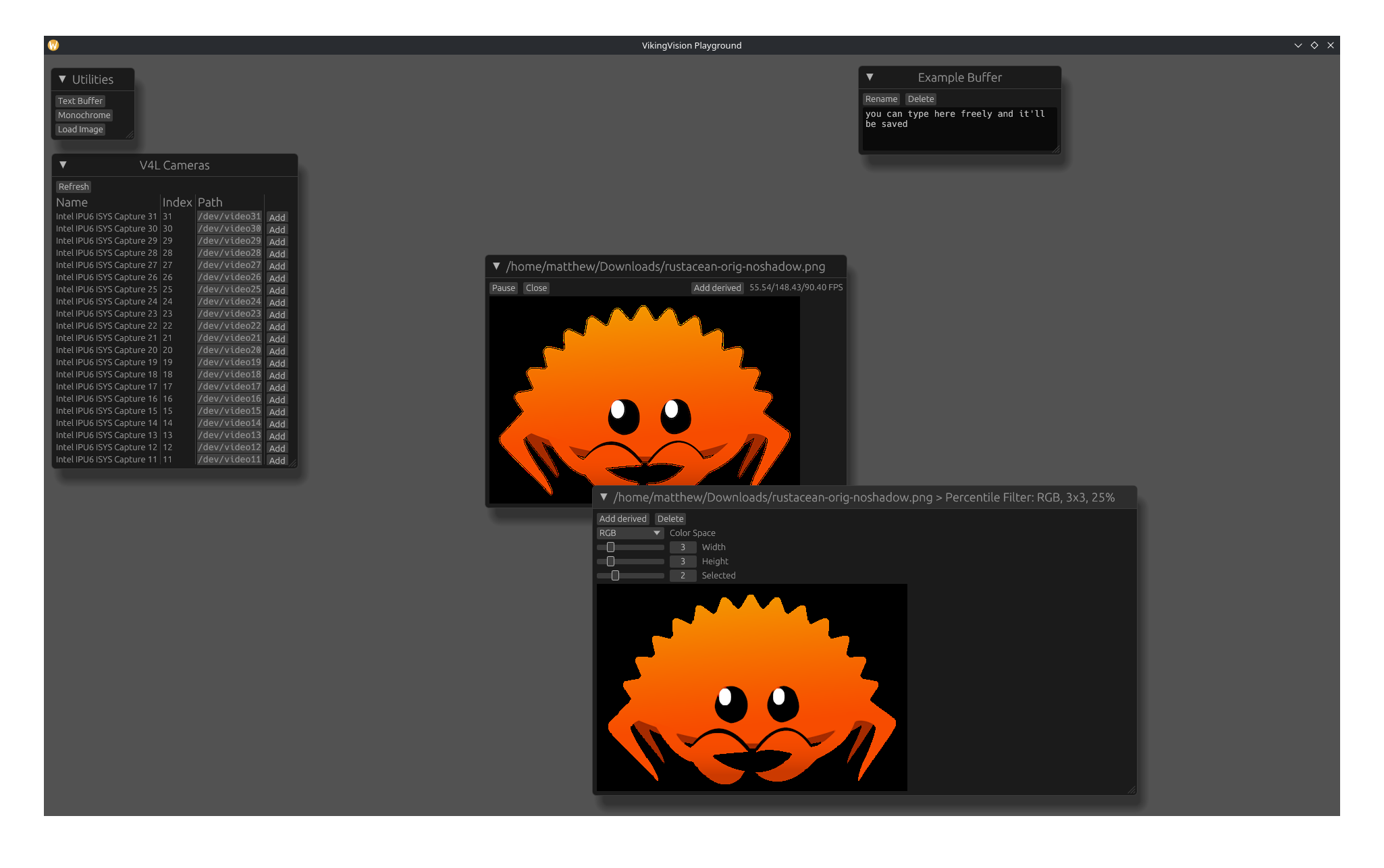
Available Cameras
This shows a live-updating view of V4L cameras as they update. Adding a camera will create a new floating window for it.
Utilities
In addition to showing actual cameras, some additional utilities are available:
Text Buffers
Text buffers act as small scratchpads for taking notes directly in the app. They’re autosaved, too!
Monochrome Cameras
Probably the fastest way to test the performance of various processing steps is a still image of a single color. You can select a color and resize the image freely. This frame is treated like a camera.
Static Images
While monochrome cameras are useful for simple performance testing, using a static image is useful because it can show the actual effects of a process on an image. It’s also useful because it doesn’t require a physical camera to be plugged in and has easily reproducible results. Currently, only JPEG and PNG images are supported, although more could be supported in the future if the need arises.
Camera Controls
Each camera runs on its own thread, which allows them to run more-or-less independently of each other and show the performance of each process (although many image processing steps use a shared thread pool, so performance will fall somewhat if multiple cameras are used). This thread can be independently paused and resumed, and the camera can be closed altogether.
In addition, a framerate counter is shown. This shows the minimum, maximum, and average framerate over the last ten seconds.
Derived Frames
A derived frame takes a previous frame and applies some basic transformation to it. Multiple steps can be performed, and the time required to do all of them is shown in the framerate counter. Note that this is different from the behavior of the pipeline runner, in which processing is done asynchronously to further improve performance.
Configuration Files
Configuration files describe the overall structure of your program—what cameras should be loaded, what components to use, and how they connect to each other. The rest of the documentation details everything that can go in the file, along with what fields it’s looking for.
In order for a configuration to be useful, there should be at least one camera and at least one component. The cameras are the inputs to the program, and components handle processing and presentation.
In addition to cameras and components, configuration files can have run parameters, NetworkTables, and vision debugging configured. More information about each of this is available in their respective sections.
Run Configuration
Run configuration is optional, and goes under the [run] table in the config. It controls thread counts and run-related parameters.
run.max_running
This is the maximum number of concurrently running pipelines. If a new frame comes in while this many frames are already being processed, the new frame will be dropped.
run.num_threads
This controls the number of threads to be used in the thread pool. It can be overridden by passing --threads N to the CLI. If neither of these is set, rayon searches for the RAYON_NUM_THREADS environment variable, and then the number of logical CPUs.
Vision Debugging
It’s fairly common to just want to see the result of some vision processing, but normally, actually seeing the results of it live would be a lot of work. You’d need to set up an event loop, create windows, handle marshalling it to your main thread because everything needs to run on the main thread, and that’s a lot of work just to show a simple window with an intermediate result, isn’t it?
To solve this problem, there’s a vision debugging tool, which has thread-safe, cheaply cloneable senders, and a receiver that sits on the main thread and blocks it for the rest of the program. From the dataflow side, it’s even simpler: you just dump the frames as input to a component with the vision-debug type. Depending on configuration, this can display the windows or save them to a file.
Configuration file
To configure this through the file, the [debug] table can be used. It has the following keys:
debug.mode
Debug modes can be overridden through components, but they’re optional. A global default can be set either here or through the environment variables, and if none is present, debugging is ignored.
debug.default_path
The default path to save videos to. This supports all of the strftime escapes, along with %i for a unique ID (32 hex characters) and %N for a pretty, human-readable name. The video will be saved as an MP4 video.
debug.default_title
The default window title for use when showing windows. This supports %i and %N like the default_path does.
Environment variables
The configuration file takes precedent over the environment variables, but the variables can be more convenient.
VV_DEBUG_MODE
Equivalent to the debug.mode configuration value, but also accepts uppercase values.
VV_DEBUG_SAVE_PATH
Equivalent to the debug.default_path configuration value.
VV_DEBUG_WINDOW_TITLE
Equivalent to the debug.default_title configuration value.
NetworkTables Configuration
In order to connect to NetworkTables, we need an address and an identity. The identity can be any URL-safe string, and the address should be the server address. Configuration goes under the [ntable] table. This table is required to be present in order to publish values from components.
ntable.identity
This should be unique per client connecting to the server, and a URL-safe string.
ntable.host
The host can be explicitly specified through this field, in which case the client will try to connect to a server on this port. It’s an error to have both this field and ntable.team present.
ntable.team
Alternatively, a team number can be set, in which case the client will try to connect to 10.TE.AM.1, where TEAM is the team number. It’s an error to have both this field and ntable.host present.
Camera Overview
Cameras are the entry point for a program. When a configuration is run with the CLI, each camera gets its own thread to read from (which is crucial for performance since reading from a camera is a blocking operation). For each camera, a new pipeline run will be created from its frame for each of the components specified in the camera’s outputs (note that this is not ideal behavior and subject to change). This is prone to issues like more expensive pipelines being starved and components unexpectedly not running, so it will be fixed soon.
In the config file
Cameras are created as tables, as their name under the [camera] table. Each camera has a type field that specifies which kind of camera it is, and an outputs field that should be an array of strings, to specify which components they should send their frames to.
A camera config might look like this:
[camera.front] # we call this our front camera
type = "v4l" # we want to use the V4L2 backend
outputs = ["detect-tags"] # send out the frame to a component called detect-tags
width = 640 # V4L2-specific options
height = 320
fourcc = "YUYV"
path = "/dev/video0"
Additional camera features
In addition to the basic raw frame we can get from the backend, the cameras support some additional quality-of-life features.
Reloading and Retrying
If reading from a frame fails, the camera tries reloading the camera and then tries again. It does so with exponential backoff, so if the camera’s been genuinely lost, it doesn’t waste time retrying to connect. By reloading the camera, we can recover from a loose USB connection or dropped packets instead of losing the camera altogether.
FPS throttling
Especially with the static cameras, the camera can send input significantly faster than it can be processed. FPS throttling sleeps if the real framerate exceeds the configured one, which frees up CPU time for other, more important things.
A maximum framerate can be set with the max_fps field for a camera.
Resizing
If the frame size isn’t desirable, it can be resized through the camera config itself. The resize.width and resize.height keys allow a new size to be set for the camera. Resizing uses nearest-neighbor scaling for simplicity.
V4L2 Cameras
Requires the v4l feature to be enabled
V4L2 is the primary way that we read from physical cameras. It allows for cameras to be read by a path or index, where an index N corresponds to /dev/videoN. Note that due to how V4L2 works, typically, only even-numbered indices are actually readable as cameras, and odd-numbered ones should not be used.
Configuration
A V4L camera must have its source, frame shape, and FourCC set. All other configuration is optional.
Source
The source specifies where to find the capture device. This can be a path, passed as the path field, or an ordinal index, under the index field. As a placeholder, unknown = {} can be used to make the config file parse, but it will fail to load a camera.
Width and Height
The camera’s dimensions are specified in the width and height fields. If these don’t correspond to an actual resolution that the camera is capable of, there may be unexpected results.
FourCC
FourCC is the format in which data is sent over the camera. It should be a four-character string, typically uppercase letters and numbers. For most cameras, either YUYV or MJPG should be used. The following codes are recognized by VikingVision:
YUYVRGB8RGBAMJPG
Overriding Pixel Formats
The FourCC codes we recognize cover the most common uses, but to support additional formats, VikingVision supports overriding the pixel format with the pixel_format field. This doesn’t need to be set if the code is already correctly recognized.
In addition, the decode_jpeg value can be used to specify that the input is JPEG data, like with the MJPG FourCC. If this is set, the output frames will always have the RGB format.
Exposure and Intervals
The camera’s exposure can be set with the exposure field. The values for this don’t seem to have any predefined meaning, but setting it to around 300 was good for Logitech cameras.
The camera’s framerate can also be set. This can either be set as an integer framerate with the fps field, or an interval fraction, which can be set with the interval.top and interval.bottom fields.
Frame Cameras
For testing purposes, rather than dealing with physical cameras, it can be more useful to show a single, static frame. These can easily run at hundreds or even thousands of frames per second because no actual work is done reading the frame.
Configuration
Frame cameras can be loaded either from a file or generated from a single, static color.
Loading from a Path
A frame camera can load an image from a path by using the path field. This is incompatible with the color field.
Single-color Images
A single-color camera can be specified with the color field. This can either be done explicitly by passing color.format, a string containing the desired pixel format, and color.bytes, an array of integers to use as the bytes, or by parsing a string under the color field (not currently supported, so loading a camera with a color specified in this way will fail).
The shape of the frame must be set with width and height fields.
Components Overview
Components handle all of the actual processing in the pipelines. Each one handles a single step, and they all combine to form a pipeline that performs the computation and presents the results. These components lend themselves well to dataflow programming, which allows for parallelization with far more safety and clarity than traditional, imperative code.
Pipeline Rules
Not every representable graph is a valid pipeline. In order for a graph to successfully be compiled into a runner, all components in the graph need to have their inputs satisfied, and their inputs must be unambiguously broadcast. If these requirements aren’t met, the pipeline will fail to start.
Inputs and Outputs
Components communicate through channels, somewhat similarly to how functions have parameters and returns. A component can define what inputs it requires and which channels it’s capable of outputting on. It’s an error to try to connect a component’s input to an output that another component doesn’t output on.
A component can either take a single, primary input, or multiple (including zero or one) named inputs. If a component takes named inputs, it can also take additional inputs, which is also dependent on the component type. The inputs each component takes, along with their uses, is documented on each of the components’ pages. A component is guaranteed to only be run if all of its inputs are available, including optional ones (the distinction between required and optional is only present in the graph, not the compiled runner).
Broadcasting
Part of the added flexibility of channels is that multiple outputs can be sent on a single channel. Any components that depend on this channel will be run multiple times, once with every value sent. For components with multiple inputs, inputs that haven’t branched will be copied across multiple runs. This functionality is called broadcasting, and it allows for components to operate on individual components in a collection. Broadcasting must be unambiguous; if two components can send multiple outputs, the pipeline will be rejected.
Aggregation
Broadcasting is a powerful feature, and its dual is aggregation. Aggregating components get access to all of the inputs (either relative to their least split input or through the whole pipeline run). Because they take all of the inputs and only run once for the group, aggregating components are considered to at their least split input when checking the pipeline graph for multi-output components.
Configuration
All components in the configuration must have a type field, with the value determining the type of component. The rest of the configuration for the components can be found on their respective pages.
In addition, components need to have their inputs set. For components that take a primary input, they should have a single input field with a string containing the name of the component to take input from, if receiving from the default output channel, or with the component name and channel name separated with a ., like component-name.channel-name to use a non-default outputs. For components that take named inputs, the configuration should have a table called inputs with similar strings as the values.
Each component can have at most one input from multiple sources. For this, rather than a single string, an array of strings should be used. The outputs of each of the specified components will be sent on the channel. For broadcasting analysis, it must be valid to have a component that would take all of the specified inputs separately at that position (there wouldn’t be any ambiguous broadcasting), and a branch point is inserted before the input.
Available Components
The following components are available for use in pipelines:
Vision
These all focus around manipulating an image or detecting features in it.
apriltag(requires theapriltagfeature)detect-pose(requires theapriltagfeature)color-filtercolor-spaceblobsresizepercent-filter/erode/dilate/median-filterbox-blurgaussian-blur
Aggregation
These combine repeated inputs into one, undoing some form of broadcasting.
Presentation
These focus around presenting results.
debugdrawffmpegntable(requires thentablefeature)vision-debug(requires thedebug-guifeature for some functionality)
Utility
Miscellaneous components that don’t have a better categorization.
AprilTagComponent
requires the apriltag feature
Detects AprilTags on its input channel.
Inputs
Primary input (Buffer): a frame to process.
Outputs
- Default channel (multiple,
Detection): the tags detected vec(single,Vec<Detection>): the tags detected, collected into a vectorfound(single,usize): the number of tags detected
Configuration
Appears in configuration files with type = "apriltag".
Additional fields:
family(string): the tag family to use, conflicts withfamiliesfamilies(string array): an array of tag families to use, conflicts withfamilymax_threads(integer, optional): the maximum number of threads to use for detectionsigma(float, optional): thequad_sigmaparameter for the detectordecimate(float, optional): thequad_decimateparameter for the detector
For FRC, the tag36h11 family should be used.
BlobsComponent
Detects the blobs in an image. A blob is an 8-connected component of non-black pixels (0 on every channel, including in color spaces with multiple representations of black) in an image. Only the bounding rectangles and number of pixels in the blob are detected.
Inputs
Primary (Buffer): the image to find blobs in. This should usually be a black/white image, like the results of a filter.
Outputs
- Default channel (multiple,
Blob): the blobs found vec(single,Vec<Blob>): the blobs found, collected into a vector
Configuration
Appears in configuration files with type = "blobs".
Additional fields:
min-w: the minimum width of detected blobsmax-w: the maximum width of detected blobsmin-h: the minimum height of detected blobsmax-h: the maximum height of detected blobsmin-px: the minimum pixel count of detected blobsmax-px: the maximum pixel count of detected blobsmin-fill: the minimum fill ratio (pixels / (width × height)) of detected blobsmax-fill: the maximum fill ratio of detected blobsmin-aspect: the minimum aspect ratio (height / width) of detected blobsmax-aspect: the maximum aspect ratio of detected blobs
All fields are optional, and if unset, default to the most permissive values.
BoxBlurComponent
Applies a box blur to an image.
Inputs
Primary input (Buffer): the image to blur.
Outputs
- Primary channel (single,
Buffer): the image, blurred.
Configuration
Appears in configuration files with type = "box-blur".
Additional fields:
width(odd, positive integer): the width of the blur windowheight(odd, positive integer): the height of the blur window
CloneComponent
Clones the behavior of another component.
Inputs
Same as the cloned component.
Outputs
Same as the cloned component.
Configuration
Appears in configuration with type = "clone".
Additional fields:
name(string): the name of the component to clone
CollectVecComponent<T>
this component aggregates its inputs
Collects the results of its inputs (of a known type) into a vector.
Inputs
elem(T): the element to collect.ref(any): a reference point. The value sent on this channel is ignored, but if it’s tied to a single-output channel of a component (like$finish), this will collect all of the values that came from the result of that component’s execution.
Outputs
- Default channel (single,
Vec<T>): the values submitted toelem, in an unspecified order. sorted(single,Vec<T>): the values submitted toelem, in the order that they would’ve come in if we used single-threaded, depth-first execution.
Configuration
Appears in configuration with type = "collect-vec".
Additional fields:
inner: (Type): the inner element type.
ColorSpaceComponent
Converts an image to a given color space.
Inputs
Primary input (Buffer): the image to transform.
Outputs
- Primary channel (single,
Buffer): the image, in the new color space.
Configuration
Appears in configuration files with type = "color-space".
Additional fields:
format(PixelFormat): the format to convert into
DebugComponent
Emits an info-level span with a debug representation of the data received.
Inputs
Primary input (any): the data to debug.
Outputs
None.
Configuration
Appears in configuration files with type = "debug".
Additional fields:
noisy(optional, boolean): if this is false, duplicate events from this component will be suppressed. Defaults to true.
DetectPoseComponent
requires the apriltag feature
Converts a Detection into a PoseEstimation.
Inputs
Primary input (Detection): a detected tag to process.
Outputs
- Default channel (single,
PoseEstimation): the estimated pose, along with its error pose(single,Pose): the estimated poseerror(single,f64): the estimation’s error
Configuration
Appears in configuration files with type = "detect-pose".
Additional fields:
spec("fixed"|"infer"): the specification of detection parameterscenter(2-element float array): the coordinates of the center of the imagefov(2-element float array): the FOV of the camera, in pixelstag_size(float |"FRC_INCHES"|"FRC_CM"|"FRC_METERS"): the size of the tag, in whatever units the measurements should be in
If spec = "fixed", all fields are required. If spec = "infer", the center and fov are determined by camera parameters, and only the tag_size is accepted.
DrawComponent<T>
Draws data on a canvas.
Inputs
canvas(Mutex<Buffer>): a mutable canvas to draw onelem(T): the element to draw on the canvas
Outputs
None.
Configuration
Appears in configuration files with type = "draw".
Additional fields:
draw(Type): the types of elements to draw. Onlyblob,apriltag,line, and their bracketed variants are recognized.space(luma|rgb|hsv|yuyv|ycc): the color space to filter in.- Channel names for the color components. These vary by color space. For example, with
yuyvthe channels arey,u, andv; withrgbthey arer,g, andb.
ColorFilterComponent
Filters an image based on pixel colors.
Inputs
Primary input (Buffer): the image to filter.
Outputs
- Primary channel (single,
Buffer): a new image, in theLUMAcolor space, with white where pixels were in range and black where they weren’t.
Configuration
Appears in configuration files with type = "filter".
The color space to filter in is determined with the space field. Recognized values are luma, rgb, hsv, yuyv, and ycc. Based on this, min- and max- fields should be present for every channel. For example, with rgb, the fields min-r, max-r, min-g, max-g, min-b, and max-b should be present. Note that the YUYV filter uses channels y, u, and v, while the YCbCr filter uses channels y, b, and r.
FfmpegComponent
Saves a video by piping it into ffmpeg.
An example for the arguments to be passed here is ["-c:v", "libx264", "-crf", "23", "vv_%N_%Y%m%d_%H%M%S.mp4"], which saves a MP4 video with the date and time in its name.
Inputs
Primary input (Buffer): the frames to save
Outputs
None.
Configuration
Appears in configuration files with type = "ffmpeg".
Additional fields:
fps(number): the framerate that the video should be saved with. This should match the camera framerate.args(array of strings): arguments for the output format offfmpeg(everything after the-).strftimeescapes, along with%iand%Nfor pipeline ID and pipeline name, are supported and can be replaced.ffmpeg(string, optional): an override for theffmpegcommand
FpsComponent
Tracks the framerate of its invocations.
Inputs
Primary channel (any): the input, ignored.
Outputs
min(single,f64): the minimum framerate in the period.max(single,f64): the maximum framerate in the period.avg(single,f64): the average framerate in the period.pretty(single,String): a pretty, formatted string, formatted asmin/max/avg FPS.
Configuration
Appears in configuration files with type = "fps".
Additional fields:
duration(string): a duration string, like1min, defaulting to10s
GaussianBlurComponent
Applies a Gaussian blur to an image.
Inputs
Primary input (Buffer): the image to blur.
Outputs
- Primary channel (single,
Buffer): the image, blurred.
Configuration
Appears in configuration files with type = "gaussian-blur".
Additional fields:
sigma(positive float): the standard deviation of the blurwidth(odd, positive integer): the width of the blur windowheight(odd, positive integer): the height of the blur window
width and height can typically be roughly sigma * 3.
NtPrimitiveComponent
requires the ntable feature
this component aggregates its inputs
Publishes data to NetworkTables. This requires NetworkTables to be configured in the file. Topic names recognize the %N and %i escapes, which are replaced with the camera name and a unique pipeline ID, respectively.
Inputs
Any named input: data to send over NetworkTables. By default, the topic is the channel name.
Outputs
None.
Configuration
Appears in configuration with type = "ntable".
Additional fields:
prefix(optional, string): a prefix for all topics to be published. A/will be automatically inserted between it and the topic name.remap(optional, table of strings): a map from input channels to topics. This may be more convenient than writing quoted names for input channels.
PercentileFilterComponent
Inputs
Primary input (Buffer): the image to transform.
Outputs
- Primary channel (single,
Buffer): the resulting image.
Configuration
Appears in configuration files with type = "percent-filter".
Additional fields:
width(odd, positive integer): the width of the filter windowheight(odd, positive integer): the height of the filter windowindex(nonnegative integer less thanwidth * height): the index of the pixel within the window.0is a erosion,width * height - 1is a dilation, andwidth * height / 2is a median filter.
Additional Constructors
Components with a type of erode, dilate, and median-filter perform erosions, dilations, and median filters, respectively. For these, the index field is not accepted.
ResizeComponent
Resize an image to a given size.
Inputs
Primary input (Buffer): the image to resize.
Outputs
- Primary channel (single,
Buffer): the image, resized.
Configuration
Appears in configuration files with type = "resize".
Additional fields:
width(nonnegative integer): the width of the resulting imageheight(nonnegative integer): the height of the resulting image
SelectLastComponent
this component aggregates its inputs
Selects the last value submitted.
In addition to the typical usage, selecting the last result of a component’s execution, this can be combined with mutable data to continue after all operations have finished. In that case, the elem channel should be connected to the earlier, mutable output, and the ref channel should be connected to the $finish channels of later components.
Inputs
elem(any): the elements to select from.ref(any): a reference point. The value sent on this channel is ignored, but if it’s tied to a single-output channel of a component (like$finish), this will collect all of the values that came from the result of that component’s execution.
Outputs
- Default channel (single, any): the last value submitted to
elem.
Configuration
Appears in configuration with type = "select-last".
UnpackComponent
Unpacks fields from the input.
Inputs
Primary input (any): the data to get fields of.
Outputs
Any output (single, any): a field extracted from the input. The channel’s name is the extracted field’s name.
Configuration
Appears in configuration files with type = "unpack".
Additional fields:
allow_missing: if this is false (the default), emit a warning if the requested field isn’t present
VisionDebugComponent
Shows the frame sent to it. This is primarily for debugging purposes, see the vision debugging docs for more general configuration.
Inputs
Primary input (Buffer): the image to show.
Outputs
None.
Configuration
Appears in configuration files with type = "vision-debug".
Additional fields:
mode(auto|none|save|show): what to do with images we receive (defaults toauto):auto: use the configured default, ornonenone: ignore this imagesave: save this image to a given pathshow: create a new window showing this image
path(string, requiresmode = "save"): see thedebug.default_pathdocumentationshow(string, requiresmode = "show"): see thedebug.default_titledocumentation
WrapMutexComponent<T>
Wraps an input in a Mutex, making it mutable.
This is necessary for drawing on a buffer with the draw component, and its contents can be later accessed by unpacking the inner field.
Inputs
Primary channel (T): the value to wrap.
Outputs
Default channel (single, Mutex<T>): the value, wrapped in a mutex.
Configuration
Appears in configuration files with type = "wrap-mutex".
Additional fields:
inner(Type): the type of the value to wrap.apriltagandblobare not recognized.
Additional Constructors
Components with a type of canvas also construct this component, with an inner type of Buffer.
Additional Configuration Types
In addition to the standard data types, some configuration parameters take only certain allowed strings.
PixelFormat
A pixel format is a string, with the following known recognized values:
?nwherenis a number from 1 to 200 (inclusive): an anonymous format, withnchannels. For example,?3is a format with three channels.luma,Luma,LUMA: a single, luma channel.rgb,RGB: three channels: red, green, and blue.hsv,HSV: three channels: hue, saturation, and value. Note that all three are in the full 0-255 range.ycc,YCC,ycbcr,YCbCr: three channels: luma, blue chrominance, red chrominance. All channels are in the 0-255 range.rgba,RGBA: four channels: red, green, blue, alpha. Because VikingVision doesn’t typically care about the alpha, the alpha is unmultiplied.yuyv,YUYV: four channels every two pixels, YUYV 4:2:2.
Types
A type of a generic argument can be specified as a generic string. The following values are recognized:
i8,i16,i32,i64,isize,u8,u16,u32,u64,usize,f32,f64: all the same as their Rust equivalentbuffer: a RustBufferstring: a RustStringblob: a RustBlobapriltag: a RustDetection(requires theapriltagfeature)- any of the previous, wrapped in brackets, like
[usize]: aVecof the contained type